
Apache CloudStack Ubuntu/KVM Build Guide for x86_64 & ARM64
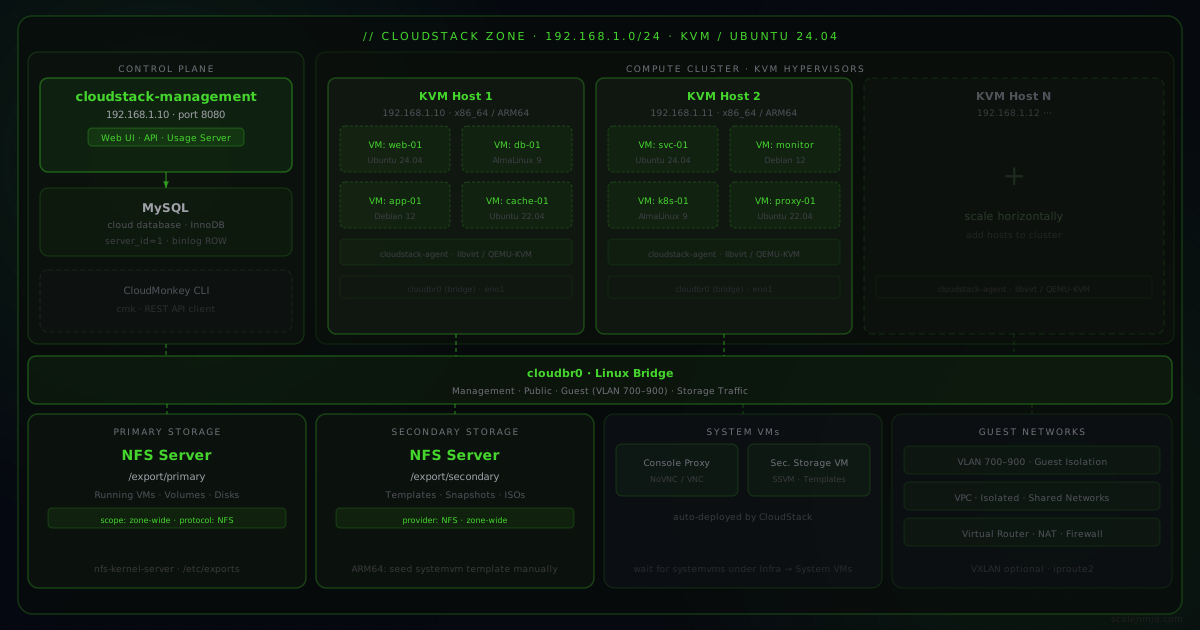
Build a fully functional private IaaS cloud with Apache CloudStack v4.22 on Ubuntu using KVM — works on both x86_64 and ARM64 hardware.
This guide covers the installation of Apache CloudStack on Ubuntu using KVM, for both x86_64 and ARM64 architectures — from Intel NUCs and Dell rack servers to Raspberry Pi 4/5 and Ampere Ultra servers.
Apache CloudStack v4.22 on Ubuntu 24.04 LTS.
For newer releases, refer to the official install guide
and the KVM host docs.
New to CloudStack? Watch the intro first:
Getting Started
Install Ubuntu 24.04 LTS on your x86_64 or ARM64 host.
/boot/firmware/config.txt:
[all]
arm_64bit=1
enable_gic=1

# NVME speed
dtparam=nvme
dtparam=pciex1_1=gen3
dtparam=pciex1_gen=3
usb_max_current_enable=1
max_usb_current=1
Ensure the universe repository is enabled in /etc/apt/sources.list, then install basic packages:
apt-get install openntpd openssh-server sudo vim htop tarVerify KVM is available:
apt-get install cpu-checker
kvm-ok
# INFO: /dev/kvm exists
# KVM acceleration can be used
Optional: install CPU microcode for Intel hosts:
apt-get install intel-microcodeAllow root SSH access — set PermitRootLogin yes in /etc/ssh/sshd_config then restart:
systemctl restart ssh
passwd root
Network Setup
Set up host networking using Linux bridges to handle CloudStack’s management, public, guest,
and storage traffic. A single bridge cloudbr0 can handle all traffic types on the same
physical network.
apt-get install bridge-utilsThis guide assumes a 192.168.1.0/24 network.
Ubuntu Netplan Config
Create /etc/netplan/01-netcfg.yaml (comment out the default 50-cloud-init.yaml first),
replacing eno1 with your actual NIC name and 192.168.1.10 with your host’s IP:
network:
  version: 2
  renderer: networkd
  ethernets:
    eno1:
      dhcp4: false
      dhcp6: false
      optional: true
  bridges:
    cloudbr0:
      addresses: [192.168.1.10/24]
      routes:
        - to: default
          via: 192.168.1.1
      nameservers:
        addresses: [1.1.1.1, 8.8.8.8]
      interfaces: [eno1]
      dhcp4: false
      dhcp6: false
      parameters:
        stp: false
forward-delay: 0mtu: 1550 under your
ethernets entries.
Apply and reboot:
netplan generate
netplan apply
Repo Setup
Run this on all hosts where CloudStack packages will be installed:
mkdir -p /etc/apt/keyrings
wget -O- http://packages.shapeblue.com/release.asc | gpg --dearmor | sudo tee /etc/apt/keyrings/cloudstack.gpg > /dev/null

echo deb [signed-by=/etc/apt/keyrings/cloudstack.gpg] http://packages.shapeblue.com/cloudstack/upstream/debian/4.22 / > /etc/apt/sources.list.d/cloudstack.list
apt-get update -y
Management Server Setup
apt-get update -y
apt-get install cloudstack-management mysql-server

# Optional: install usage server
apt-get install cloudstack-usage
Database Setup
Configure InnoDB settings in /etc/mysql/mysql.conf.d/mysqld.cnf:
[mysqld]
server_id = 1
sql-mode="STRICT_TRANS_TABLES,NO_ENGINE_SUBSTITUTION,ERROR_FOR_DIVISION_BY_ZERO,NO_ZERO_DATE,NO_ZERO_IN_DATE,NO_ENGINE_SUBSTITUTION"
innodb_rollback_on_timeout=1
innodb_lock_wait_timeout=600
max_connections=1000
log-bin=mysql-bin
binlog-format = 'ROW'
Restart MySQL and deploy the database:
systemctl restart mysql
cloudstack-setup-databases cloud:cloud@localhost --deploy-as=root: -i 192.168.1.10-i flag overrides the management server IP if auto-detection is wrong.
The --deploy-as=root: format has root as user with a blank password —
adjust if your root password is set.
Storage Setup
apt-get install nfs-kernel-server quotaCreate NFS exports:
echo "/export  *(rw,async,no_root_squash,no_subtree_check)" > /etc/exports
mkdir -p /export/primary /export/secondary
exportfs -a
/export can point to a separate disk or external storage — format and mount it
via /etc/fstab before running the above.
Configure and restart NFS:
sed -i -e 's/^RPCMOUNTDOPTS="--manage-gids"$/RPCMOUNTDOPTS="-p 892 --manage-gids"/g' /etc/default/nfs-kernel-server
sed -i -e 's/^STATDOPTS=$/STATDOPTS="--port 662 --outgoing-port 2020"/g' /etc/default/nfs-common
echo "NEED_STATD=yes" >> /etc/default/nfs-common
sed -i -e 's/^RPCRQUOTADOPTS=$/RPCRQUOTADOPTS="-p 875"/g' /etc/default/quota
service nfs-kernel-server restartwget http://download.cloudstack.org/systemvm/4.22/systemvmtemplate-4.22.0-aarch64-kvm.qcow2.bz2
/usr/share/cloudstack-common/scripts/storage/secondary/cloud-install-sys-tmplt \
-m /export/secondary -f systemvmtemplate-4.22.0-aarch64-kvm.qcow2.bz2 -h kvm \
-o localhost -r cloud -d cloudFuture CloudStack releases will automate ARM64 systemvm template installation.
KVM Host Setup
apt-get install qemu-kvm cloudstack-agentEnable VNC for console proxy:
sed -i -e 's/\#vnc_listen.*$/vnc_listen = "0.0.0.0"/g' /etc/libvirt/qemu.confOn Ubuntu 22.04/24.04, add LIBVIRTD_ARGS="--listen" to /etc/default/libvirtd:
echo LIBVIRTD_ARGS=\"--listen\" >> /etc/default/libvirtdMask the socket-based listeners (required for CloudStack compatibility):
systemctl mask libvirtd.socket libvirtd-ro.socket libvirtd-admin.socket libvirtd-tls.socket libvirtd-tcp.socket
systemctl restart libvirtd
Set legacy connection mode in /etc/libvirt/libvirt.conf (important on Ubuntu 24.04):
remote_mode="legacy"Configure TCP listener in /etc/libvirt/libvirtd.conf:
echo 'listen_tls=0' >> /etc/libvirt/libvirtd.conf
echo 'listen_tcp=1' >> /etc/libvirt/libvirtd.conf
echo 'tcp_port = "16509"' >> /etc/libvirt/libvirtd.conf
echo 'mdns_adv = 0' >> /etc/libvirt/libvirtd.conf
echo 'auth_tcp = "none"' >> /etc/libvirt/libvirtd.conf
systemctl restart libvirtd/etc/cloudstack/agent/agent.properties:
guest.cpu.arch=aarch64
guest.cpu.mode=host-passthrough
host.cpu.manual.speed.mhz=1500
host.reserved.mem.mb=800
host.cpu.manual.speed.mhz is required because Linux on ARM64 cannot always report
the correct CPU speed. Adjust host.reserved.mem.mb as needed (default is 1024 MB).
/etc/sysctl.conf
and run sysctl -p:
net.bridge.bridge-nf-call-arptables = 0
net.bridge.bridge-nf-call-iptables = 0apt-get install uuid
UUID=$(uuid)
echo host_uuid = \"$UUID\" >> /etc/libvirt/libvirtd.conf
systemctl restart libvirtdFirewall Setup
If ufw is active (ufw status), open the required ports:
ufw allow mysql
ufw allow proto tcp from any to any port 22
ufw allow proto tcp from any to any port 1798
ufw allow proto tcp from any to any port 16509
ufw allow proto tcp from any to any port 16514
ufw allow proto tcp from any to any port 5900:6100
ufw allow proto tcp from any to any port 49152:49216
Or configure iptables for your management network (192.168.1.0/24):
NETWORK=192.168.1.0/24
iptables -A INPUT -s $NETWORK -m state --state NEW -p udp --dport 111 -j ACCEPT
iptables -A INPUT -s $NETWORK -m state --state NEW -p tcp --dport 111 -j ACCEPT
iptables -A INPUT -s $NETWORK -m state --state NEW -p tcp --dport 2049 -j ACCEPT
iptables -A INPUT -s $NETWORK -m state --state NEW -p tcp --dport 32803 -j ACCEPT
iptables -A INPUT -s $NETWORK -m state --state NEW -p udp --dport 32769 -j ACCEPT
iptables -A INPUT -s $NETWORK -m state --state NEW -p tcp --dport 892 -j ACCEPT
iptables -A INPUT -s $NETWORK -m state --state NEW -p tcp --dport 875 -j ACCEPT
iptables -A INPUT -s $NETWORK -m state --state NEW -p tcp --dport 662 -j ACCEPT
iptables -A INPUT -s $NETWORK -m state --state NEW -p tcp --dport 8250 -j ACCEPT
iptables -A INPUT -s $NETWORK -m state --state NEW -p tcp --dport 8080 -j ACCEPT
iptables -A INPUT -s $NETWORK -m state --state NEW -p tcp --dport 9090 -j ACCEPT
iptables -A INPUT -s $NETWORK -m state --state NEW -p tcp --dport 16514 -j ACCEPT
apt-get install iptables-persistent
Disable AppArmor for libvirt:
ln -s /etc/apparmor.d/usr.sbin.libvirtd /etc/apparmor.d/disable/
ln -s /etc/apparmor.d/usr.lib.libvirt.virt-aa-helper /etc/apparmor.d/disable/
apparmor_parser -R /etc/apparmor.d/usr.sbin.libvirtd
apparmor_parser -R /etc/apparmor.d/usr.lib.libvirt.virt-aa-helper
Start Control Plane
cloudstack-setup-management
systemctl status cloudstack-management
tail -f /var/log/cloudstack/management/management-server.log
Once the management server is up, log in at http://192.168.1.10:8080/client with
username admin and password password.
cmk to interact
with the control plane. See the
Getting Started guide.
Deploy Your Private Cloud
The following sets up an advanced zone (no security groups) in a typical 192.168.1.0/24 network.
Deploy DataCenter — Step by Step
1. Create Zone
Go to Infrastructure > Zone, click Add Zone, select Advanced Zone:
Name         - any name
Public DNS 1 - 8.8.8.8
Internal DNS - 192.168.1.1
Hypervisor   - KVM
2. Setup Network
Use the default VLAN isolation on a single physical NIC (carries all traffic types).
If iproute2 is installed and MTUs are configured, VXLAN can also be used.
Public traffic:
Gateway  - 192.168.1.1
Netmask  - 255.255.255.0
VLAN/VNI - (leave blank for untagged)
Start IP - 192.168.1.20
End IP   - 192.168.1.50
3. Pod Configuration
Name                           - any name
Gateway                        - 192.168.1.1
Start/end reserved system IPs  - 192.168.1.51–192.168.1.80
4. Guest Traffic
VLAN/VNI range: 700-9005. Create Cluster
Name       - any name
Hypervisor - KVM
6. Add First Host
Hostname - 192.168.1.10
Username - root
Password - <root password or leave blank for public key>/var/cloudstack/management/.ssh/id_rsa.pub) to the KVM host's
/root/.ssh/authorized_keys.
7. Add Primary Storage
Name     - any name
Scope    - zone-wide
Protocol - NFS
Server   - 192.168.1.10
Path     - /export/primary
8. Add Secondary Storage
Provider - NFS
Name     - any name
Server   - 192.168.1.10
Path     - /export/secondary
9. Launch Zone
Click Launch Zone — CloudStack will:
- Create the zone and physical networks
- Add traffic types, enable network providers and virtual router elements
- Create the pod, configure public and guest traffic
- Add the host, mount primary storage
- Set up secondary storage and complete zone creation
10. Enable Zone
Confirm and enable the zone. Wait for System VMs to appear under
Infrastructure → System VMs, then your IaaS cloud is ready.
Register Templates
Register cloud-init enabled guest OS images to deploy VMs:
| Distro | x86_64 Template | ARM64 Template |
|---|---|---|
| Ubuntu 24.04 | x86_64 | arm64 |
| Ubuntu 22.04 | x86_64 | arm64 |
| Debian 12 | x86_64 | arm64 |
| AlmaLinux 9 | x86_64 | arm64 |
| OpenSUSE 15 | x86_64 | arm64 |
Compute → SSH Key Pairs so cloud-init injects it automatically.
Add Networks
Once System VMs are up and running, you may create isolated network or VPC for your account for the built-in admin account or any new user account you may created that can be later used to deploy instances.
For simplicity, you may also create a shared network in the unused IP address
space of your home/private network. For example, create shared network using
API/CLI or UI under Network > Guest Networks > Add Network > Shared using:
Physical Network - cloudbr0
VLAN/VNI         - untagged
IPv4 Gateway     - 192.168.1.1
IPv4 Netmask     - 255.255.255.0
IPv4 Start IP    - 192.168.1.81
IPv4 End IP      - 192.168.1.100
DNS1             - 192.168.1.1
DNS2             - 1.1.1.1
Deploy an Instance
Go to Compute → Instances → Add Instance (or use the top-nav Create button):
Zone             - select your zone
Arch             - x86_64 or ARM64
Image            - your registered template
Compute Offering - select or create an offering
Networks         - one or more guest networks
SSH Key Pairs    - select your key pair
Name             - (optional)
Hit Launch Instance — your instance will be created!
Integrations
| Name | Link |
|---|---|
| CloudMonkey CLI | github.com/apache/cloudstack-cloudmonkey |
| Terraform Provider | github.com/apache/cloudstack-terraform-provider |
| Ansible Collection | github.com/ngine-io/ansible-collection-cloudstack |
| Kubernetes Provider | github.com/apache/cloudstack-kubernetes-provider |
| Cluster API Provider | github.com/kubernetes-sigs/cluster-api-provider-cloudstack |
| Go SDK | github.com/apache/cloudstack-go |
| Benchmarking Tool | github.com/apache/cloudstack-csbench |
More integrations at cloudstack.apache.org/integrations.
Where to Go Next
Stuck on something?
- Join the
users@mailing list — cloudstack.apache.org/mailing-lists - Start a discussion — github.com/apache/cloudstack/discussions
Further reading:
- ShapeBlue’s CloudStack PoC Guide
- ShapeBlue’s Quick Build Guide
- CloudStack Networking 101
- Networking Models Step-by-Step — Part 1
- Networking Models Step-by-Step — Part 2
- Project Documentation