
Ceph Storage with CloudStack on Ubuntu/KVM
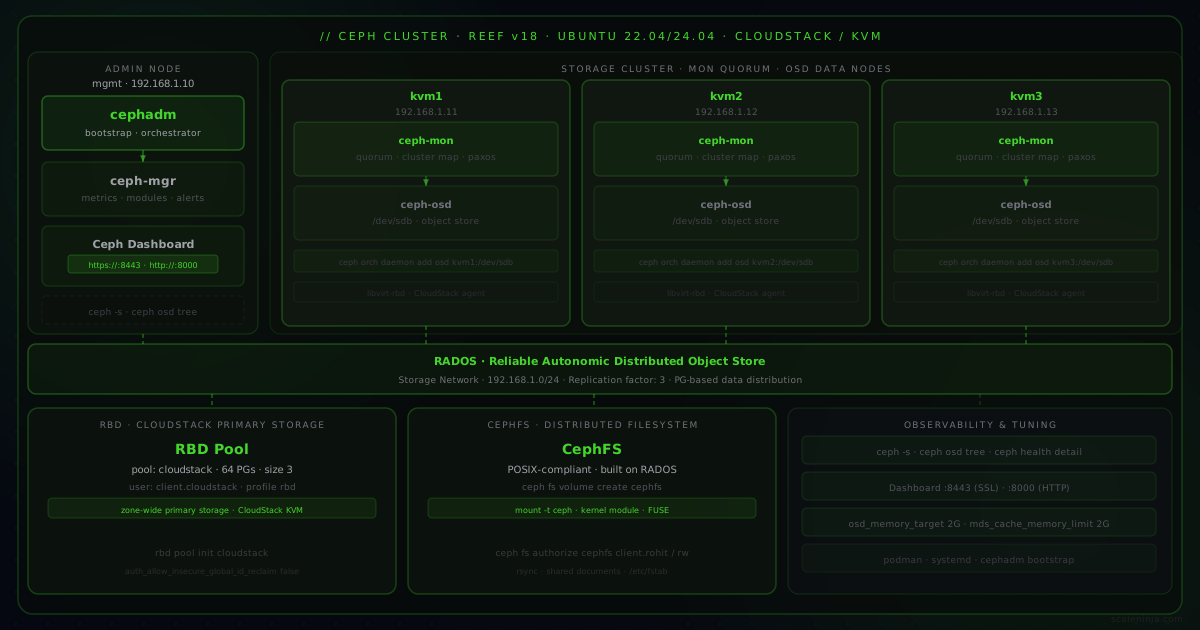
Deploy a Ceph cluster (v18+) on Ubuntu using cephadm, integrate it with Apache CloudStack as RBD primary storage, and mount CephFS as a distributed shared file system.
Deploy a Ceph cluster (v18+) on Ubuntu using cephadm, then integrate it with Apache CloudStack and KVM as RBD primary storage — and optionally mount CephFS as a distributed shared file system.
{/* excerpt */}
Host Configuration
In this Ceph cluster, three hosts serve as both mon and osd nodes, and one admin node acts as mgr and hosts the Ceph dashboard.
192.168.1.10 mgmt    # Admin/mgr and dashboard
192.168.1.11 kvm1    # mon and osd
192.168.1.12 kvm2    # mon and osd
192.168.1.13 kvm3 # mon and osdConfigure SSH on the admin/management node:
tee -a ~/.ssh/config <<EOF
Host *
    UserKnownHostsFile /dev/null
    StrictHostKeyChecking no
    IdentitiesOnly yes
    ConnectTimeout 0
    ServerAliveInterval 300
EOF
Install cephadm
Newer Ceph versions recommend cephadm to install and manage Ceph clusters using containers and systemd.
Cephadm requires python3, systemd, podman or docker, ntp, and lvm2. Install on all nodes:
sudo apt-get install -y python3 ntp lvm2 libvirt-daemon-driver-storage-rbdInstall podman:
sudo apt-get update
sudo apt-get -y install podman
Configure the Ceph repository (Reef/v18) and install cephadm and ceph-common on all nodes:
wget https://download.ceph.com/keys/release.asc -O /etc/apt/keyrings/ceph.asc
echo "deb [signed-by=/etc/apt/keyrings/ceph.asc] http://download.ceph.com/debian-reef/ $(lsb_release -sc) main" | sudo tee /etc/apt/sources.list.d/ceph.list
apt-get update
apt-get install -y cephadm ceph-common
Bootstrap Cluster
Bootstrap the Ceph cluster on the admin node only (192.168.1.10 in this example):
cephadm bootstrap --mon-ip 192.168.1.10 \
                  --initial-dashboard-user admin \
                  --initial-dashboard-password Passw0rdHere \
                  --allow-fqdn-hostname
This creates the cluster config at /etc/ceph/ceph.conf and SSH public key at /etc/ceph/ceph.pub, using container images managed by podman.
The dashboard is available at https://192.168.1.10:8443/ — log in with admin and the password from above.
Copy the Ceph SSH key to the other nodes:
ssh-copy-id -f -i /etc/ceph/ceph.pub root@192.168.1.11
ssh-copy-id -f -i /etc/ceph/ceph.pub root@192.168.1.12
ssh-copy-id -f -i /etc/ceph/ceph.pub root@192.168.1.13
Add Hosts
Add hosts after disabling automatic mon deployment:
ceph orch apply mon --unmanaged
ceph orch host add kvm1 192.168.1.11
ceph orch host add kvm2 192.168.1.12
ceph orch host add kvm3 192.168.1.13
Add Monitors
Read more about monitors.
Optionally restrict monitor traffic to a CIDR:
ceph config set mon public_network 192.168.1.0/24Add monitors:
ceph orch daemon add mon kvm1:192.168.1.11
ceph orch daemon add mon kvm2:192.168.1.12
ceph orch daemon add mon kvm3:192.168.1.13
Enable automatic placement:
ceph orch apply mon --placement="kvm1,kvm2,kvm3" --dry-run
ceph orch apply mon --placement="kvm1,kvm2,kvm3"
Add OSDs
Read more about OSDs.
List available disks across added hosts:
ceph orch device lsAdd a disk as OSD on each host (e.g. /dev/sdb):
ceph orch daemon add osd kvm1:/dev/sdb
ceph orch daemon add osd kvm2:/dev/sdb
ceph orch daemon add osd kvm3:/dev/sdb
Verify OSDs:
ceph osd tree_admin label get ceph.conf and the client.admin keyring copied to /etc/ceph, enabling ceph CLI access from that host:
ceph orch host label add kvm1 _adminDisable SSL on Dashboard
Optional — useful in homelab or internal network environments:
ceph config set mgr mgr/dashboard/ssl false
ceph config set mgr mgr/dashboard/server_addr 192.168.1.10
ceph config set mgr mgr/dashboard/server_port 8000
ceph dashboard set-grafana-api-ssl-verify False
ceph mgr module disable dashboard
ceph mgr module enable dashboard
The dashboard is now accessible at http://192.168.1.10:8000/
Tuning
See the hardware recommendations for sizing guidance.
Set OSD and MDS cache memory limits (2 GB each, adjust as needed):
ceph config set osd osd_memory_target 2G
ceph config set mds mds_cache_memory_limit 2G
Verify:
ceph config get osd osd_memory_target
ceph config get mds mds_cache_memory_limit
ceph config get mon public_network
Ceph and CloudStack
Check cluster health before integrating:
ceph -sceph config set mon auth_expose_insecure_global_id_reclaim false
ceph config set mon mon_warn_on_insecure_global_id_reclaim_allowed false
ceph config set mon auth_allow_insecure_global_id_reclaim false
ceph orch restart monCreate a Ceph pool for CloudStack:
ceph osd pool create cloudstack 64 replicated
ceph osd pool set cloudstack size 3
rbd pool init cloudstack
Create a dedicated auth key:
ceph auth get-or-create client.cloudstack mon 'profile rbd' osd 'profile rbd pool=cloudstack'Add this pool as a zone-wide Ceph primary storage in CloudStack: use the output key as the RADOS secret for user cloudstack, and specify the monitor IP/domain with a storage tag.
CephFS
CephFS is a POSIX-compliant distributed file system built on RADOS. It works well as a shared directory — for example, syncing documents and photos across machines with rsync.
Create a CephFS volume:
ceph fs volume create cephfsInstall ceph-common on the client:
sudo apt-get install ceph-commonAuthorize a client (run on the mon host — save the output keyring to /etc/ceph/ceph.client.rohit.keyring on the client):
sudo ceph fs authorize cephfs client.rohit / rwMount the CephFS:
sudo mount -t ceph 192.168.1.11:6789:/ /mnt/ceph -o name=rohit,secret=<secret>/etc/fstab — list multiple monitor IPs (port 6789 is the default):
192.168.1.11,192.168.1.12,192.168.1.13:/ /home/rohit/ceph ceph name=rohit,secret=<SecretHere>,defaults 0 2Then use rsync to sync files to CephFS:
rsync -avzP --delete-after documents/ ceph/documents/